Scheduling a Post
Post a design to a connected social account right away or at a set time, from the Publish tab of the design editor.
You can post a design to your connected social accounts straight from the design editor, right away or at a time you choose. Everything happens on the Publish tab, the second tab on the left of the design editor.
Before you start, connect at least one account. See Connecting Your Social Accounts.
Only designs can be posted this way. To post a document or blog, turn it into a design first.
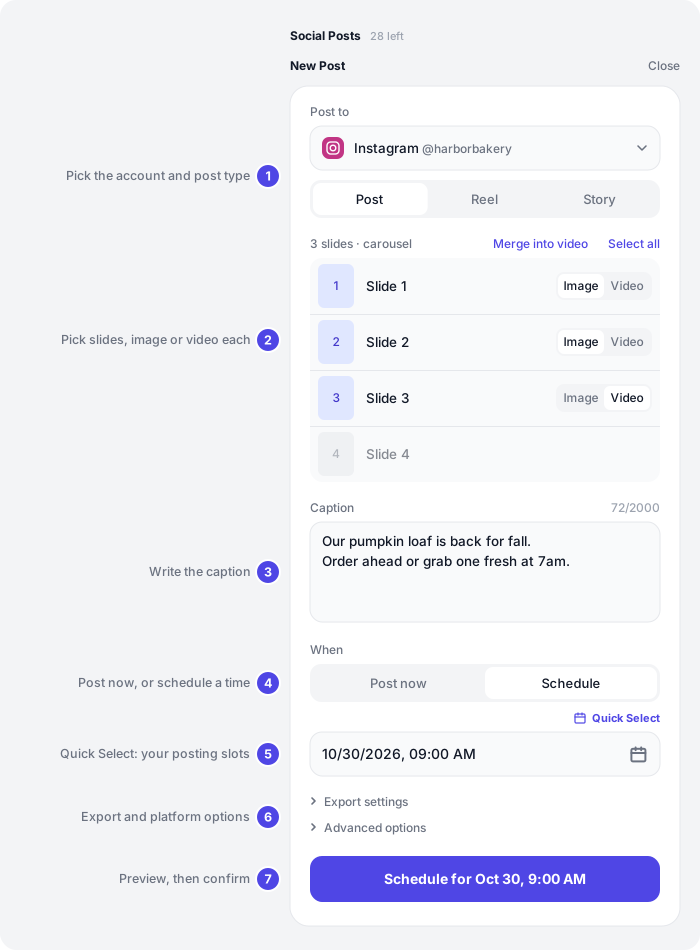
- Post to: the account, then the post type.
- Slides: which pages of your design go in the post.
- Caption: the text that goes with the post.
- When: Post now, or Schedule for a date and time.
- Quick Select: pick one of your brand’s posting slots.
- Export settings and Advanced options.
- The main button: shows a preview, then you confirm.
Quick start (5 minutes)
- Open a design and click Publish in the side tabs.
- Click Socials, then New Post.
- Under Post to, pick an account, like Instagram, then a post type, like Post.
- Check the slides. All slides of the first size in your design are ticked.
- Write or check the Caption.
- Under When, click Schedule and pick a date and time.
- Click the button at the bottom, like Schedule for Oct 30, 9:00 AM.
- Look over the preview and click Confirm & Schedule.
Example: a bakery opens its 4-slide “Fall menu” design. It picks Instagram and Post, ticks slides 1 to 3, writes “Our pumpkin loaf is back for fall. Order ahead or grab one fresh at 7am.”, picks Oct 30 at 9:00 AM and confirms. The post shows as Scheduled on the Publish tab.
The Publish tab: Email or Socials
The Publish tab has two options at the top:
- Email sends the design’s pages to people on your team by email. It’s selected when you first open the tab. See Emailing a Design.
- Socials posts the design to your connected social accounts. This guide covers Socials.
Socials is greyed out until your brand has a connected account. Its tooltip says “Connect a social account in your brand’s Info tab → Content Channels to publish directly”. That means the Content Channels part of your brand’s Info tab.
If a design already has a social post, the tab opens on Socials for you.
Your social post allowance
At the top of Socials you see Social Posts and how many posts your brand has left, like 28 left. Hover over it to see, for example, “32 of 60 social posts used this billing period”. The number changes colour when you’ve used 80% or more.
When none are left, New Post is greyed out and you see “You’ve used all 60 social posts this period. Upgrade your plan or add a Social Post Pack for more.” (with your own limit).
What counts as a post, and when the allowance refills, is explained in Plans and Billing.
Choose where to post
- Click New Post. The composer opens. Click Close to put it away.
- Under Post to, click the account. The list shows each connected platform with its @username.
- Pick a post type. The choices depend on the platform:
| Platform | Post types |
|---|---|
| Post, Reel, Story | |
| Post, Reel, Story | |
| Post only (no choice shown) | |
| TikTok | Video, Photo |
| YouTube | Short, Video |
Each type has its own rules for slides, captions and video. See Platform Rules for Posts.
When you switch platforms, your caption and slides stay. If the new platform doesn’t have the post type you picked, the first type for that platform is picked instead.
Choose your slides
The slide list shows every page of your design as Slide 1, Slide 2 and so on. Ticked slides are bright. Unticked ones are faded. Click a slide to tick or untick it, or use Select all and Deselect all.
The line above the list sums it up, like 3 slides · carousel or No slides selected.
Which slides are ticked to start with
When you open New Post or change the post type, Orsa ticks slides for you based on their size:
- Post and Photo: all slides that share the first size in your design that isn’t a tall 9:16 size.
- Reel, Story, Video and Short: all slides with a tall 9:16 size, like 1080 × 1920.
- If your design has no slides of that kind, every slide is ticked.
Example: a design has an Instagram Post page (1080 × 1350) and an Instagram Story page (1080 × 1920). Post ticks slide 1. Story ticks slide 2.
Image or video slides
How the slides are sent depends on the post type:
- Post: each ticked slide is one item in a carousel. Next to each ticked slide, choose Image or Video. Slides with a video on them start as Video. A Video slide is turned into a short video clip.
- Merge into video (for a Post with two or more slides) joins the ticked slides into one video. Use carousel switches back.
- Use video and Use image switch a single-slide Post or Story between a still image and a video.
- Reel, Video and Short always join the ticked slides into one video.
- Story with more than one slide also becomes one video. You see “Multiple slides publish as a single video story”.
- Photo (TikTok) always sends each slide as an image.
Each slide in a video plays for its own length. To match a slide to its clip, see AI Image Tools.
Write the caption
The Caption box starts with the caption from the design’s Info panel, so write it there once and it’s ready every time. You can change it here for this post only.
- The counter shows how many characters you’ve used and the platform’s limit, like 72/2000. It turns red if you’re over.
- Story posts have no caption, so the box is hidden.
- YouTube shows Title (required) above the box, and the box is called Description.
- LinkedIn posts always need a caption.
Limits for each platform are in Platform Rules for Posts.
Choose when it goes out
Under When, click Post now or Schedule. Schedule is picked when the composer opens.
Post now
The panel says “Publishes to Instagram about 2 minutes after you confirm” (with your platform). Orsa hands the post over as soon as you confirm, and it’s set to go live about 2 minutes later.
Schedule a time
- Click the date and time box and pick a day and time.
- The main button changes to show it, like Schedule for Oct 30, 9:00 AM.
Times use your computer’s time zone. The time has to be more than 2 minutes from now. If it isn’t, you see “Schedule time must be at least a few minutes in the future”.
Until you pick a time, the main button is greyed out. Its tooltip says “Pick a date and time, or switch to Post now”.
Quick Select
Quick Select fills in the time from your brand’s posting schedules.
- In the design’s Info panel, link the design to one or more Content Schedules. See Content Channels and Schedules.
- On the Publish tab, click Quick Select above the date box. The Quick Schedule list opens on this month. Use the arrows to change month.
- Each slot shows the schedule and channel name, like “Weekday posts - Instagram”, with its date and time.
- Click a slot. Its date and time fill the box.
Only upcoming slots from the active schedules linked to this design, on the platform you’re posting to, show. A greyed-out slot marked · Scheduled (“Already has content scheduled”) already has a post from a design linked to that schedule within 12 hours of it.
If you see “No open time slots in the linked schedules this month”, try the next month. “No active posting schedule for Instagram is linked to this design” (with your platform) means no active schedule on that platform is linked yet: pick a time yourself, or link one in the design’s Info panel.
Example: a gym’s “Weekday posts” schedule has a slot every weekday at 7:00 AM. The gym links its new design to that schedule, clicks Quick Select, and picks “Weekday posts - Instagram, Wed, Oct 29, 07:00 AM”.
Export settings
Click Export settings to change how your slides are turned into files:
- Pixel ratio: from 0.5 to 3. It starts at 1, the page’s own size. Images are never made wider than 1920 pixels, whatever you pick.
- Transparent background: leaves out the page background. Only shown for image posts, and not for TikTok Photo posts.
Example: a 1080 × 1350 post with Pixel ratio 2 is sent as a 1920 × 2400 image, because of the 1920-pixel limit.
Advanced options
Click Advanced options for settings that only one platform has, like Instagram collaborators or YouTube privacy. It only shows when the post type has options. Instagram’s are explained in Instagram Post Options.
For YouTube, you must answer Made for kids? in Advanced options before you can schedule.
Preview and confirm
- Click the main button at the bottom of the composer. It says Post to Instagram, Schedule for Oct 30, 9:00 AM or similar.
- Orsa turns your slides into files. You see Exporting pages… or Rendering video… with a percentage. Keep the editor open. For videos, you can click Cancel.
- A preview opens, titled like Instagram · Post preview. It shows the post in a mock-up of the app, with your caption. For carousels, flip through the slides.
- Under the preview you see “Scheduled for Oct 30, 9:00 AM” or “Publishes immediately”, and a line for each advanced option you set.
- Click Confirm & Schedule (or Confirm & Post Now). A progress bar shows while the files upload.
- You see “Post scheduled to Instagram” or “Publishing to Instagram”.
Click Back to return to the composer and change something.
If something goes wrong, the preview shows the reason and the button changes to Try Again.
After you schedule
The post appears under Scheduled Posts on the Publish tab:
- Sending to Instagram while Orsa hands it over, then Scheduled, with “Scheduled for Oct 30, 9:00 AM” and the slides it uses.
- Details on a sending or scheduled post shows the preview and settings. Cancel Post stops it.
- Published once it’s live, with a View on Instagram link.
There’s no way to edit a scheduled post. To change it, click Cancel Post and create a new one. Statuses, cancelling and failed posts are covered in Post Status and Failures.
Your design changes too:
- The design locks. You can’t edit it while a post is scheduled, being sent or published. See Locked designs.
- Its Status becomes Approved when the post is scheduled, and Published when it goes live.
Post one design to several places
You can create more than one post from the same design. Click New Post again after each one, even while the design is locked.
Example: a yoga studio has a design with a 1080 × 1350 page and a 1080 × 1920 page. It schedules an Instagram Post with slide 1, then an Instagram Story with slide 2, then a Facebook Reel with slide 2.
Each post counts toward your allowance. Two posts of the same design to the same platform and type must be more than 2 minutes apart.
Ideas for scheduling posts
A week of posts in one sitting.
A café designs five posts on Monday morning. In each one it clicks Quick Select and picks the next free slot from its “Weekday posts” schedule.
A carousel with a video in it.
A salon makes a 4-slide Instagram Post. Slides 1, 2 and 4 are photos. Slide 3 has a short clip, so it’s set to Video. The carousel goes out with three images and one video.
A story and a post from the same design.
A florist adds a 1080 × 1920 page to its Mother’s Day design. It schedules a Post with page 1 for 9:00 AM and a Story with page 2 for noon.
Same-day news.
A shop closes early because of a storm. It edits a template, picks Post now and clicks Confirm & Post Now.
Tips for the best results
- Size your pages for the post type first. Tall 9:16 pages are picked for reels, stories and shorts. Other sizes are picked for posts. See Choosing a size.
- Write the caption in the Info panel. It’s filled in for every post you create from the design.
- Link the design to a content schedule so Quick Select can offer your slots. Pick a slot whose channel matches the platform under Post to: Quick Select shows slots for every linked schedule.
- Check the preview carefully. Once a post is scheduled, you can’t edit it or the design without cancelling.
- Get sign-off before you schedule. Orsa doesn’t require an approval before a post can be scheduled. Use Reviews and Approvals first.
- Keep the editor open until you see the “Post scheduled” message, especially for videos.
Common questions
Socials is greyed out. Your brand has no connected account. Connect one on the Content Channels part of the Info tab. See Connecting Your Social Accounts.
New Post is greyed out. You’ve used all your social posts for this period. See Plans and Billing.
The main button is greyed out. Hover over it to see why. Common reasons: “Select at least one slide”, “Pick a date and time, or switch to Post now”, “Enter a title for the video” (YouTube), or “Answer the made-for-kids question in advanced options” (YouTube).
I see “Pick a time at least 2 minutes from now, or switch to Post now”. Pick a time more than 2 minutes from now, or use Post now.
I see “Another post is scheduled within 2 minutes of this time”. This design already has a post of the same type to the same platform at almost the same time. Move one of them by a few minutes.
I picked Post now, but it isn’t live yet. Posts go out about 2 minutes after you confirm. The card shows Sending, then Scheduled, then Published.
Quick Select shows no slots. Link the design to a Content Schedule in its Info panel. The schedule must be active and have a content type. Also check the next month.
My story became a video. A Story with more than one slide is joined into one video story. Tick only one slide to post an image story.
My caption box is red. The caption is longer than the platform allows. Shorten it. Caption limits are in Platform Rules for Posts.
I see “Failed to generate media for the post”. The slides couldn’t be turned into files. Try again, try fewer slides, or lower the Pixel ratio in Export settings.
I see “This brand isn’t active, so it can’t publish posts”. Your brand isn’t active, for example because it hasn’t finished setup. See Creating and Setting Up a Brand, then schedule again. A post that was already scheduled before the brand stopped being active fails with “Not sent: brand is not active”; click Retry once it’s active.
Can I change a scheduled post? No. Click Cancel Post on it and create a new one. Cancelling also unlocks the design if no other post is keeping it locked.
Can I post a document or blog? No. Only designs can be posted. Put the content into a design first.
Was this helpful? Tell us what worked or what was missing athello@orsa.social.