Writing a Blog with AI
Turn a content idea into a full blog post step by step. Pick a length, review Orsa AI's outline, approve it, then edit and revise the written post.
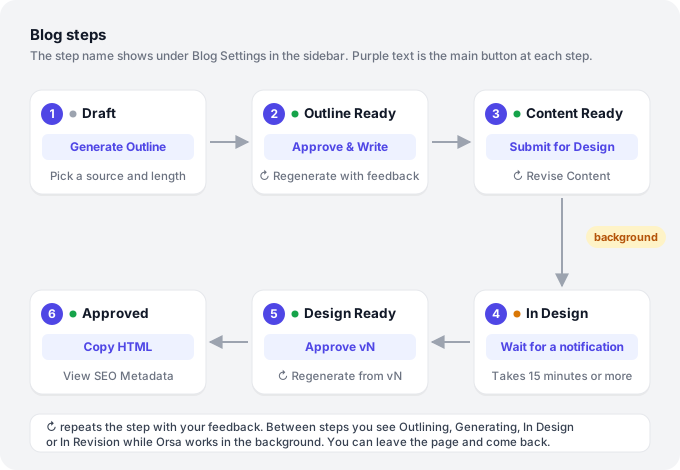
Blog lets Orsa AI write a full blog post for your website, one step at a time. You pick what the post is about and how long it should be. Orsa AI plans an outline, you approve it, and Orsa AI writes the post. You can then edit it, ask for changes, and send it off to be designed as a web page.
AI blog writing is in beta.
Open it from the Blog tab of the Create page. To start a new one, click Create, pick Blog, and click Create.
After the post is written, see Designing and Exporting a Blog to turn it into a finished web page.
Quick start (10 minutes)
- Open Create, click Create, pick Blog, and click Create. The blog opens at the Draft step.
- Under Content Source, click Select a source and pick an idea from Ideas.
- Under Length, pick Medium (about 1,000 words).
- In Description, add tone and things to avoid, like “Friendly, no jargon”.
- Click Generate Outline. Wait for the outline. The page updates by itself.
- Read the outline. Click Approve & Write.
- Wait for the post to be written. The page updates by itself at Content Ready.
- Read the post and edit anything you like, right on the page.
Example: a plant shop has the idea “How to keep a fiddle leaf fig alive in winter”. They pick it as the source, choose Medium, write “Warm, practical, for beginners” in Description, and click Generate Outline.
The Blog Settings sidebar
The right side of every blog step is the Blog Settings sidebar. At the top it shows the step the blog is at, like Outline Ready or Content Ready.
It has two tabs:
- Settings: the Approvers for the blog, Scheduled At, and the fields and buttons for the current step.
- Repurpose: turn an approved blog into an AI design, design, transcript or marketing email. See Repurpose and Similar Content.
Scheduled At records when you plan to publish the post. Orsa doesn’t post blogs to your website for you. For scheduling, see Scheduling a Post.
The ⋮ menu at the top has Copy Link and Delete. Once the post is written it also has View SEO Metadata and Copy HTML. See Designing and Exporting a Blog.
Step 1: Draft
At the Draft step you tell Orsa AI what to write about.
Content Source (required): “Link an idea or repurpose content (choose one)”.
- Click Select a source.
- Pick from Ideas or Transcripts.
Generate Outline stays greyed out until you pick a source.
Pick an idea when you can. Orsa AI plans the post from the idea’s title and description, and from the sub-pillar it belongs to. With a transcript as the source, Orsa AI plans the post from the transcript’s title and script.
Length: how long the finished post should be.
| Option | Target length |
|---|---|
| Short | about 500 words |
| Medium | about 1,000 words (picked for you) |
| Long | about 2,000 words |
| Deep | about 3,500 words |
Description: tone, angle and anything to avoid. Placeholder: “Tone, things to avoid…”.
Example: Speak to busy parents. Mention our free kids’ class on Saturdays. Don’t name competitors.
These fields save as you change them. When you’re ready, click Generate Outline.
Waiting for the outline
After you click Generate Outline, the page shows “Generating your blog outline…”. Orsa AI looks at your brand details, searches the web for articles on the topic, and plans the structure.
- The page checks for the outline on its own, about every 40 seconds, and shows it when it’s ready.
- You can click Back to Blogs and come back later. Open the blog again from the Blog tab.
If the outline can’t be made, the blog goes back to where it was: Draft, or the previous outline if you asked for changes, and you get a Blog Outline Failed notification. Try again.
Step 2: Review the outline
When the outline is ready, the blog is at Outline Ready. The outline shows:
- Proposed Title, sometimes with a short note on why. The blog takes this title as its name.
- Hook Strategy: how the post will grab the reader at the start.
- Structure: the sections, with a word count for each. Click a section to see its purpose and key points.
- CTA: how the post will end and what it asks readers to do.
- SEO Notes: Orsa AI’s notes on keywords and on what other articles already cover.
Content Source, Length and Description are locked from this step on.
To change the outline
- Type what you want in Feedback, like “Add a section on common mistakes, more casual tone”.
- Click Regenerate. It’s greyed out until you type feedback.
- Wait for the new outline. It replaces the old one.
To accept the outline, click Approve & Write.
Example: the outline for “Winter care for fiddle leaf figs” has five sections but nothing on light. The owner types Add a section on moving the plant closer to a window and clicks Regenerate.
Waiting for the post
After Approve & Write, the page shows “Generating your blog content…”. Orsa AI writes the whole post from the outline.
- The page checks on its own about every 40 seconds.
- You can leave and come back. Open the blog again from the Blog tab.
- If writing fails the first time, it’s tried again automatically within about 15 minutes. You get a Blog Content Ready notification when that retry finishes.
When the post is written, the blog is at Content Ready and the editor loads the new text by itself.
Step 3: Edit and revise the post
At Content Ready the written post is in the editor. It has the title, an introduction, the sections, a conclusion, and often Frequently Asked Questions and Sources at the end.
Edit it yourself
- Click into the text and type. Changes save by themselves, and the top bar shows Saving…, All changes saved or Failed to save – Retry.
- Type
/for headings, lists, Image, Table, Blockquote, Code Block, Divider and Ask Orsa AI. - Rename the post in the title box at the top.
- Use Preview to read it without editing.
Ask Orsa AI to revise it
- In Content Feedback, describe the change, like “Make the intro punchier, add more examples in section 2”.
- Click Revise Content. It’s greyed out until you type feedback.
- Wait while Orsa AI rewrites the post. Reload when it’s back at Content Ready.
Revise Content rewrites the whole post from its current text. Images and formatting you added yourself may not survive, so revise first and do the finishing touches after.
Check the SEO warnings. An amber SEO bar at the top of the sidebar lists things like “Missing meta description.” or “Meta title is longer than the recommended 60 characters.” Click +N more to see them all. Fix them in the Meta Title, Meta Description and Cover Image Alt Text fields in the sidebar; the bar updates as you type.
When you’re happy with the text, set up the design and click Submit for Design. See Designing and Exporting a Blog. After that the text can’t be edited or revised any more.
AI credits
Generate Outline, Regenerate, Approve & Write and Revise Content use your brand’s AI credits. Longer posts use more.
When the credits run out, the sidebar shows “You’ve used all your AI credits for this plan. Upgrade your plan or buy an AI Credit Pack to continue.” and the outline buttons are greyed out. Revise Content shows an error instead. See Plans and Billing.
Ideas for using AI blogs
Turn your best ideas into posts.
A physiotherapy clinic has an idea “3 stretches for desk workers” with a good description. They pick it as the source, choose Short, and get a quick post to share on their site and newsletter.
A deep guide for your main service.
A wedding photographer picks the idea “How to plan a wedding day timeline”, chooses Deep, and writes in Description: Practical, warm, mention we offer free timeline reviews for booked couples.
Shape the outline before any writing happens.
The first outline for “Choosing running shoes” reads like a product list. The store types Focus on fit and gait, not brands in Feedback and clicks Regenerate before approving.
Tips for the best results
- Start from a well-written idea. Orsa AI plans the post from the idea’s title and description. A one-word idea gives a vague post. See Working on an Idea.
- Fill in your brand first. Orsa AI uses your brand details and Playbook when it plans and writes. See Brand Kit and Playbook.
- Put tone and must-mentions in Description. It’s locked after the outline, so set it before you click Generate Outline.
- Fix the structure at the outline step. Changing the outline is quicker than rewriting a finished post.
- Revise first, polish last. Revise Content rewrites the whole post, so do your own small edits after the last revision.
- Reload when the post is ready. If you waited on the page, reload before you edit so you’re working on the new text.
- Read before you publish. Check facts, prices and claims about your business.
Common questions
Generate Outline is greyed out. Pick a Content Source first. If one is picked, check whether you’re out of AI credits. The sidebar says so in amber.
The outline went away and I’m back at Draft. The outline couldn’t be made. Click Generate Outline again. If you’d asked for changes, you’re back at your previous outline instead.
I didn’t get a notification when the outline or post was ready. You get Blog Outline Ready and Blog Content Ready notifications, or Blog Outline Failed / Blog Content Failed if a step couldn’t finish. If you muted notifications, open the blog again from the Blog tab to check.
The blog says Content Ready but the editor is empty or shows old text. The editor reloads the text by itself when the step changes. If it still looks wrong, reload the page.
Can I change the length or description after the outline? No. They lock once the outline is made. Use Feedback on the outline, or Content Feedback on the post, to steer it instead.
My blog post doesn’t match my transcript. Orsa AI plans the outline from the transcript’s script (very long scripts are cut off). Add the key points you want kept in Description.
Can I go back from Content Ready to the outline? No. Each step moves forward. To start over, create a new blog.
Revise Content shows “AI credit limit reached. Upgrade your plan or buy an AI Credit Pack to continue.” Your brand is out of AI credits for this billing period. See Plans and Billing.
Can I add comments or request a review on a blog? Not today. Blogs don’t have comments or a Request Review button. Add approvers in Settings, and see Reviews and Approvals.
Can Orsa publish the post to my website? No. When the post is designed, you copy its HTML and SEO details into your website yourself. See Designing and Exporting a Blog.
How do I delete a blog? Click ⋮ at the top of the sidebar, then Delete. Confirm with Delete. It can’t be undone.
Was this helpful? Tell us what worked or what was missing athello@orsa.social.