Exporting Designs
Download a design as PNG, JPEG, PDF, GIF, MP4 video, HTML or SVG, pick pages and quality, and preview it as a post first.
You can download any design as an image, a PDF, a video or a web file. Use it to post somewhere Orsa doesn’t publish to, send a file to a printer, or share a draft by email.
The Download button is the round button with a down arrow at the top right of the design editor.
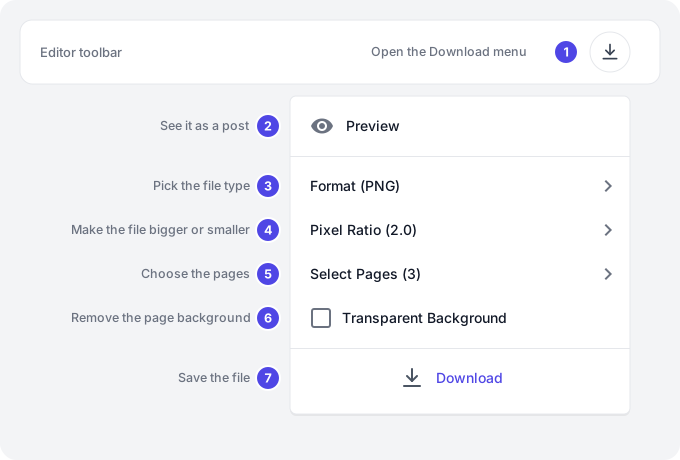
- Download button: opens the menu.
- Preview: see the design as it will look in a post.
- Format: the file type, like PNG or PDF.
- Pixel Ratio: how big the file is.
- Select Pages: which pages to export.
- Transparent Background: leaves out the page background.
- Download: saves the file to your computer.
Quick start (5 minutes)
- Open your design in the editor.
- Click the Download button at the top right.
- Click Format and pick PNG.
- Click Select Pages and pick Select current page.
- Click Download.
Example: a florist downloads page 1 of their Mother’s Day post as a PNG to send to a local newspaper. With the default Pixel Ratio (2.0), a 1080 × 1350 post saves as a sharp 2160 × 2700 image.
Choosing a format
Click Format and pick one of seven file types.
| Format | Best for | What you get |
|---|---|---|
| PNG | Sharp images, logos, text-heavy posts, transparent backgrounds | One image for one page. A ZIP for two or more pages. |
| JPEG | Photos, and smaller files for email | One image for one page. A ZIP for two or more pages. |
| Printing, flyers, multi-page documents | One PDF with all the pages you selected. | |
| GIF | Short animations | One GIF of the whole design. |
| MP4 | Videos, reels, animated posts | One video of the pages you selected. See Downloading a video. |
| HTML | A web page version of the design | One HTML file of the whole design. |
| SVG | Editing in other design apps | Always a ZIP, with one SVG file per page. |
Example: a real-estate agent downloads a 6-page Document A4 listing as a PDF to print, and the cover page as a JPEG to attach to an email.
Download options
The options show under Format, and only the ones that apply to the chosen format appear. GIF and HTML have no options: they always use the whole design. SVG only has Select Pages.
Pixel Ratio sets how big the file is. Drag the slider under Size from 0.5 to 3.0. The default is 2.0.
| Pixel Ratio | A 1080 × 1080 page becomes |
|---|---|
| 0.5 | 540 × 540 (small, quick to send) |
| 1.0 | 1080 × 1080 (the page’s own size) |
| 2.0 | 2160 × 2160 (default, sharp on phones and retina screens) |
| 3.0 | 3240 × 3240 (largest, for print or big screens) |
It applies to PNG, JPEG, PDF and MP4.
Select Pages picks which pages to export. The number in brackets is how many are picked. Open it to use Select current page, Select all, Unselect all, or click Page 1, Page 2 and so on to tick or untick single pages. All pages are picked when you open the editor. If the design has a scheduled post with chosen slides, those slides are picked instead.
Transparent Background leaves out the page’s background, so only your text, shapes and photos are saved. It shows for PNG and PDF. Use it with PNG, for example to save a logo lockup or sticker you can place on other images. JPEG files can’t be transparent, so the option doesn’t show for JPEG.
When you get a ZIP file
A ZIP is a single file that holds several files. You get one when you:
- Download PNG or JPEG with two or more pages selected.
- Download SVG, even for one page.
The ZIP is named after your design, and each file inside is numbered with its
page number. For example, a design called “Spring menu” with pages 2 and 4
picked gives Spring menu.zip, holding Spring menu_page_2.png and
Spring menu_page_4.png.
Double-click the ZIP on your computer to open it.
Downloading a video (MP4)
MP4 downloads are made on a server, so they take a little longer:
- Pick MP4 under Format.
- Pick the pages under Select Pages. Each page plays for its own length, one after the other.
- Click Download.
- The Download button turns into a progress bar with a percentage. Keep the editor open until it reaches 100% and the file saves.
If it takes more than about ten minutes, the download stops and you see “The video is taking too long to render. Try again with fewer pages.” Try fewer pages or a lower Pixel Ratio.
Make each page as long as its video. Select a video on the page and click the Fit slide length to video button in the toolbar. Its tooltip shows the video’s length, like “Fit slide length to video (12.5s)”. See AI Image Tools.
Example: a yoga studio’s reel has three pages: a 4-second title card, a 12-second class clip and a 3-second “Book now” page. They click Fit slide length to video on the clip, pick MP4 and Select all, and download a 19-second video.
Previewing a design as a post
Click Preview at the top of the Download menu to see your design the way people will see it in their feed.
- The preview uses the size of your first page. If that size is Instagram Post, Instagram Story, Instagram Reel, Facebook Post, Twitter Post, LinkedIn Post, Pinterest Pin, TikTok Video or YouTube Video, it’s shown inside a mock-up of that app.
- Any other size is shown plain, with a note to resize the first slide to a supported size.
- For carousels, use the dots under the preview to flip between pages.
Preview doesn’t download anything.
Ideas for exporting designs
A print-ready flyer.
A bookshop designs an A4 event poster, picks PDF and moves Pixel Ratio to 3.0 for a crisp print.
A carousel for another app.
A cafe posts a 5-slide carousel on a platform Orsa doesn’t publish to. They pick PNG, Select all, and get one ZIP with all 5 slides, numbered in order.
A sticker with no background.
A bakery makes a “Fresh today” badge on its own page, ticks Transparent Background, picks PNG, and uses the file on its website.
A quick check before posting.
Before scheduling, a gym owner clicks Preview to see their Instagram Story inside a story mock-up and spots that the price sits too low.
Tips for the best results
- Use PNG for text and graphics, JPEG for photos. PNG keeps text sharp. JPEG makes smaller photo files.
- Keep Pixel Ratio at 2.0 for social media. It looks sharp on phones. Go to 3.0 for print, and down to 1.0 for email attachments.
- Check videos with Preview first. MP4 downloads take longer, so make sure the pages and their lengths are right before you start.
- Fit each video page to its clip with Fit slide length to video, so videos aren’t cut short or left with extra time at the end.
- Name your design before downloading. PNG, JPEG, PDF, SVG, MP4 and HTML files, and ZIPs, are named after the design.
Common questions
The Download button in the menu is greyed out. No pages are selected. Open Select Pages and pick at least one page. GIF and HTML export the whole design, so their Download button is never greyed out for this.
I got a ZIP instead of an image. You selected two or more pages with PNG or JPEG, or you picked SVG. Open the ZIP to find one file per page. To get a single image, choose Select current page.
My transparent download has a background. JPEG can’t be transparent. Choose PNG and tick Transparent Background.
My MP4 download failed. “The video is taking too long to render” means it took more than about ten minutes. “Something went wrong exporting the video” means the server couldn’t make it. Try fewer pages or a lower Pixel Ratio, and keep the editor open while it works.
The video is longer or shorter than my clip. Each page plays for its own length. Select the video and click Fit slide length to video to match the page to the clip.
Why doesn’t the preview show an Instagram mock-up? The preview uses your first page’s size. Resize page 1 to one of the supported sizes under Platform & Size. See Choosing a size.
Do brand guides show in my download? No. The brand margin and red areas only show in the editor.
Was this helpful? Tell us what worked or what was missing athello@orsa.social.